

Description
Download Jitsi Meet – Free, Secure, Open‑Source Video Conferencing Tool
Overview
Jitsi Meet is a free, open‑source video‑conferencing platform that lets individuals, businesses, and educational institutions host online meetings without the hassle of account creation or subscription fees. Built on modern WebRTC technology, Jitsi Meet runs directly in a browser, encrypts every call by default, and never sells user data. Whether you need a quick one‑to‑one chat, a large‑scale webinar, or a collaborative workspace with screen sharing, Jitsi Meet provides a secure, low‑maintenance alternative to commercial solutions such as Zoom, Microsoft Teams, or Skype. Its intuitive interface requires only a unique room name, and participants can join instantly by clicking a shared link—no additional software download is necessary for most users. The platform also supports advanced features like live streaming to YouTube, recording meetings to the cloud, and bandwidth‑adaptive video quality, making it suitable for both casual conversations and professional presentations. By eliminating the need for user accounts and offering end‑to‑end encryption, Jitsi Meet puts privacy and simplicity at the forefront of online collaboration.
Key Features
- Zero‑Account Access: Start or join a meeting simply by entering a room name or clicking a link—no sign‑up required.
- End‑to‑End Encryption: All audio and video streams are encrypted automatically, protecting your conversations from eavesdropping.
- Unlimited Participants: Host meetings with any number of participants; the platform scales to accommodate large webinars.
- Screen Sharing & Presentation Mode: Share your entire screen, a specific application window, or a PDF document with a single click.
- Live Streaming to YouTube: Broadcast your meeting in real time to a YouTube channel for a wider audience.
- Recording & Cloud Storage: Record sessions and store them securely in the cloud or download them for offline review.
- Adaptive Video Quality: The client automatically lowers resolution on weak connections, ensuring a smooth experience.
- Tile & Speaker View: Switch between a grid of all participants or focus on the active speaker.
- Integrated Chat & Reactions: Send text messages, raise hands, and use emoji reactions without leaving the call.
- Open‑Source Community: Continuously improved by developers worldwide, with regular updates and security patches.
Installation, Usage & Compatibility
Getting started with Jitsi Meet is remarkably straightforward. Because the core application runs in modern browsers, you can launch a meeting on any device that supports WebRTC—no dedicated installer is required for basic use. Simply navigate to meet.jit.si, type a unique room name, and press “Go.” The platform will generate a secure URL that you can share via email, chat, or calendar invites. Participants click the link, grant microphone and camera permissions, and they are instantly connected.
For organizations that prefer a self‑hosted solution, Jitsi Meet can be installed on a private server using Docker, Snap packages, or traditional Linux distributions. The official documentation provides step‑by‑step instructions for Ubuntu, Debian, and CentOS, covering prerequisite packages, firewall configuration, and TLS certificate setup. Self‑hosting grants full control over data residency and allows custom branding, integration with LDAP or SSO, and dedicated TURN servers for improved connectivity behind strict firewalls.
Jitsi Meet is compatible with Windows 10/11, macOS 10.14+, Linux (Ubuntu, Fedora, Debian, etc.), Android 6.0+, and iOS 12+. The web client works seamlessly in Chrome, Edge, Firefox, and Safari, while native mobile apps are available on the Google Play Store and Apple App Store for users who prefer a dedicated app experience. All platforms receive regular security updates, and the open‑source nature ensures that vulnerabilities are addressed quickly by the global community.
Once inside a meeting, the toolbar provides quick access to essential controls: mute/unmute audio, enable/disable video, share screen, invite participants, and open the chat window. The “More” menu contains advanced options such as “Low‑Bandwidth Mode,” “Recording,” and “Live Stream.” As the room creator, you also have moderator privileges, allowing you to mute all participants, lock the room, or remove disruptive users. These controls make Jitsi Meet suitable for both informal gatherings and formal corporate conferences.
Pros & Cons
Pros
- Completely free with no hidden subscription fees.
- No account creation needed—quick, hassle‑free access.
- End‑to‑end encryption protects privacy out of the box.
- Open‑source codebase encourages transparency and community support.
- Runs on any modern browser; native apps available for mobile.
- Unlimited participants and no time limits on meetings.
- Integrated features: screen sharing, live streaming, recording.
- Adaptive video quality reduces glitches on slow connections.
- Self‑hosting option for enterprises with strict compliance needs.
- Regular updates and active development community.
Cons
- Large meetings (>50 participants) may experience occasional latency.
- Audio/video synchronization can lag on very weak networks.
- Advanced admin controls (e.g., detailed analytics) are limited compared to paid services.
- Self‑hosting requires technical expertise and server resources.
- No built‑in calendar integration; users must manage invites manually.
FAQ
Do I need to create an account to host a Jitsi Meet conference?
No. Jitsi Meet allows you to start a meeting simply by entering a unique room name on the web interface. Participants join by clicking the shared link, without any registration.
Is Jitsi Meet completely free, or are there hidden costs?
Jitsi Meet is 100 % free for both personal and commercial use. The public meet.jit.si service is hosted at no charge, and the open‑source code can be self‑hosted without licensing fees. Optional costs may arise only if you choose to pay for dedicated server hosting or premium support.
How secure are my calls on Jitsi Meet?
All calls are encrypted using DTLS‑SRTP, and the platform does not store any meeting content unless you explicitly record it. Because the software is open source, its security mechanisms are publicly audited, and no user data is sold to third parties.
Can I record a Jitsi Meet session?
Yes. The host can enable recording, which saves the video to a cloud storage service (e.g., Dropbox) or a local server when self‑hosted. Recorded files include both audio and video streams and can be downloaded after the meeting ends.
What browsers and devices are supported?
Jitsi Meet works on all major browsers that support WebRTC, including Chrome, Edge, Firefox, and Safari. It runs on Windows, macOS, Linux, Android, and iOS. Native mobile apps are available for Android and iOS, while desktop users can join directly from the browser or install the optional Electron client.
Conclusion & Call to Action
Jitsi Meet stands out as a truly free, secure, and feature‑rich video‑conferencing solution that removes the friction often associated with paid platforms. Its zero‑account entry, end‑to‑end encryption, and open‑source transparency make it an ideal choice for privacy‑conscious individuals, startups, educators, and large enterprises alike. While extremely large meetings may occasionally experience minor performance hiccups, the platform’s adaptive bandwidth management and robust moderator tools keep most sessions running smoothly.
If you’re looking for a cost‑effective way to host virtual meetings without compromising on security or functionality, download Jitsi Meet today and start collaborating instantly. For organizations that need tighter control, consider self‑hosting the solution on your own servers to gain full data sovereignty and custom branding. Experience the freedom of unlimited, encrypted video calls—no subscription required.
Guides & Tutorials for Jitsi Meet
How to install Jitsi Meet
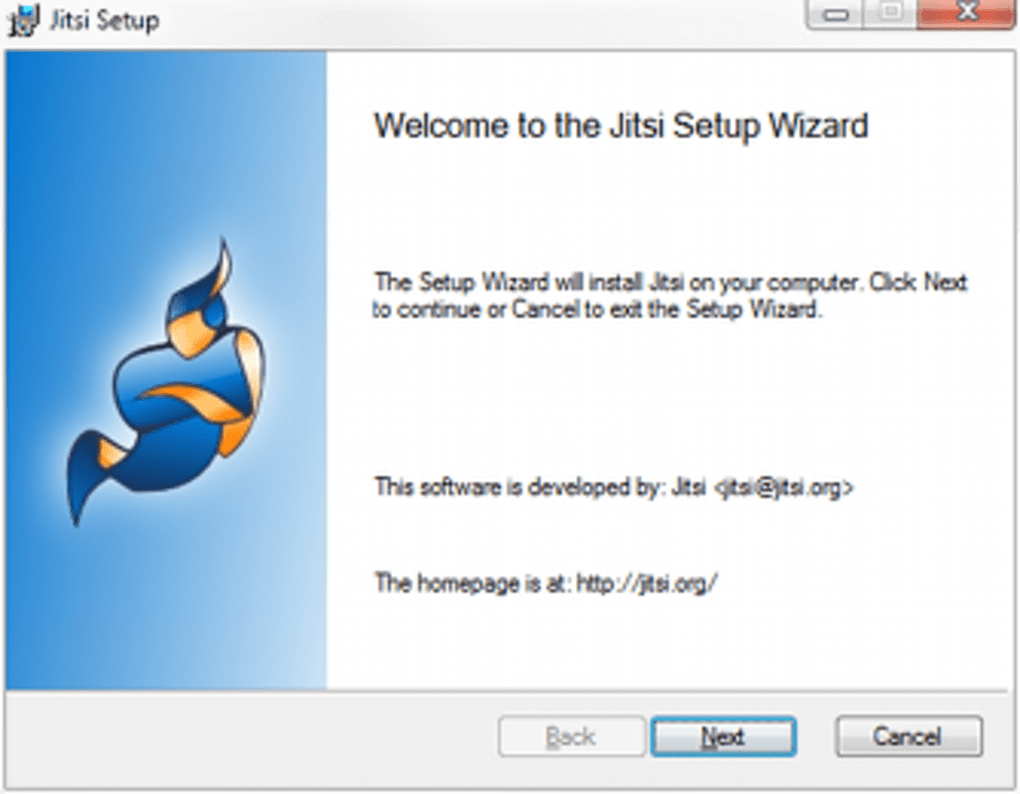
- Click the Preview / Download button above.
- Once redirected, accept the terms and click Install.
- Wait for the Jitsi Meet download to finish on your device.
How to use Jitsi Meet
This software is primarily used for its core features described above. Open the app after installation to explore its capabilities.
User Reviews for Jitsi Meet 0
No reviews found





.webp)